> ## Documentation Index
> Fetch the complete documentation index at: https://bruno-a6972042-docs-api-docs-split-more-menu-ryan.mintlify.site/llms.txt
> Use this file to discover all available pages before exploring further.
# Configuring and Fetching secrets
Starting from Bruno v4.0.0, the configuration of secret managers has moved from **Collection > Secrets** to **Environment > External Secrets** tab.
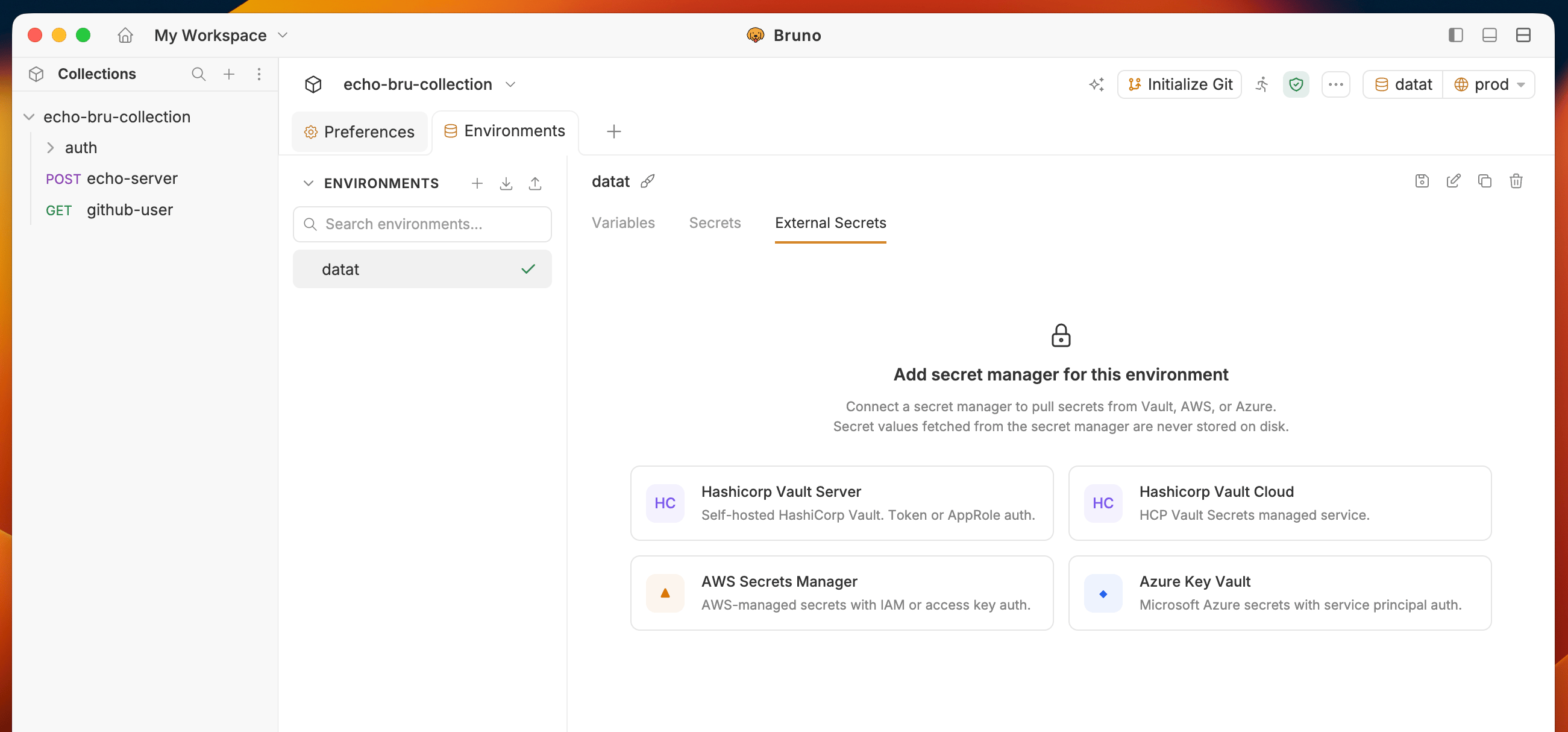
1. Go to **Environment** > **External Secrets** and select the secret manager you want to configure.
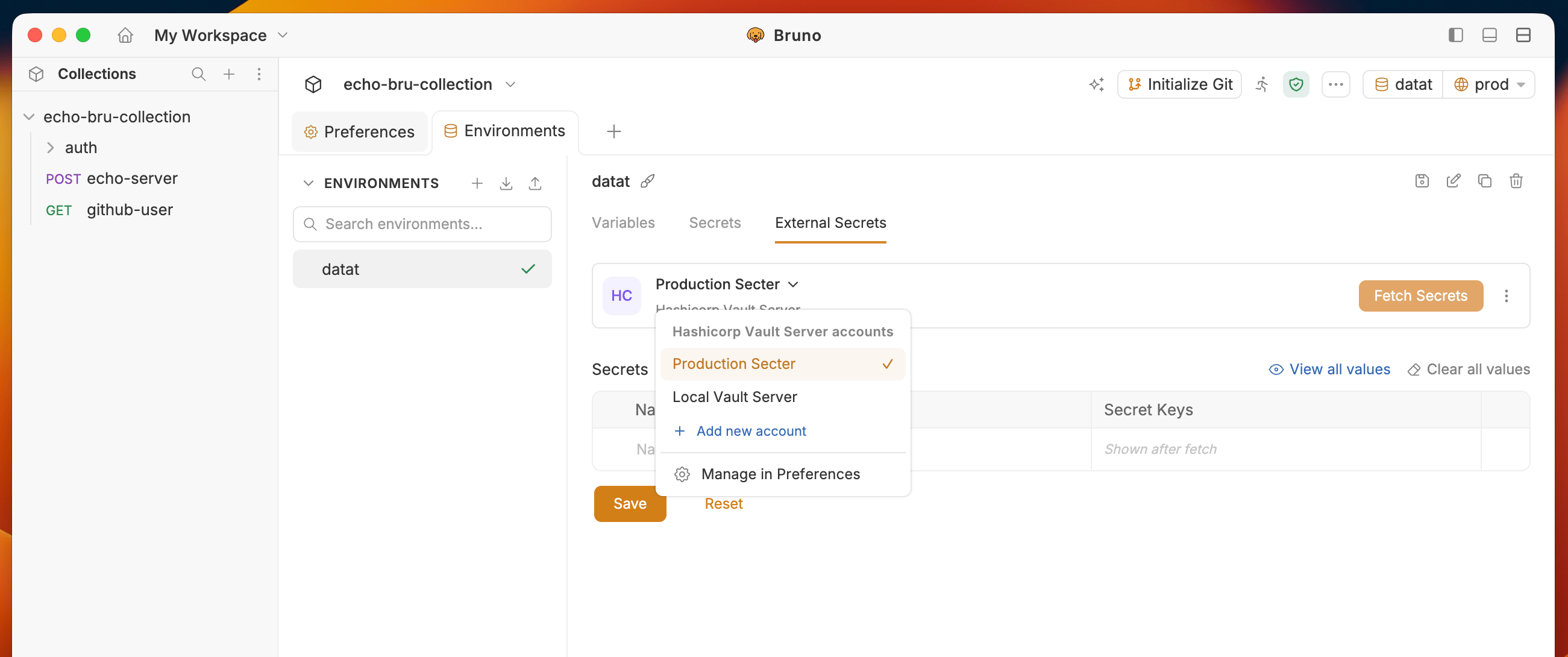
 2. You will see the configured **Secret Manager** accounts list from **Preferences** settings. Select the **Account** you want to configure.
 3. Enter **Name** and **Path** to the secret you want to fetch.
* **Name** — the secret name, e.g. usebruno
* **Path** — must start with secret/, e.g. secret/data/api-key
3. Enter **Name** and **Path** to the secret you want to fetch.
* **Name** — the secret name, e.g. usebruno
* **Path** — must start with secret/, e.g. secret/data/api-key
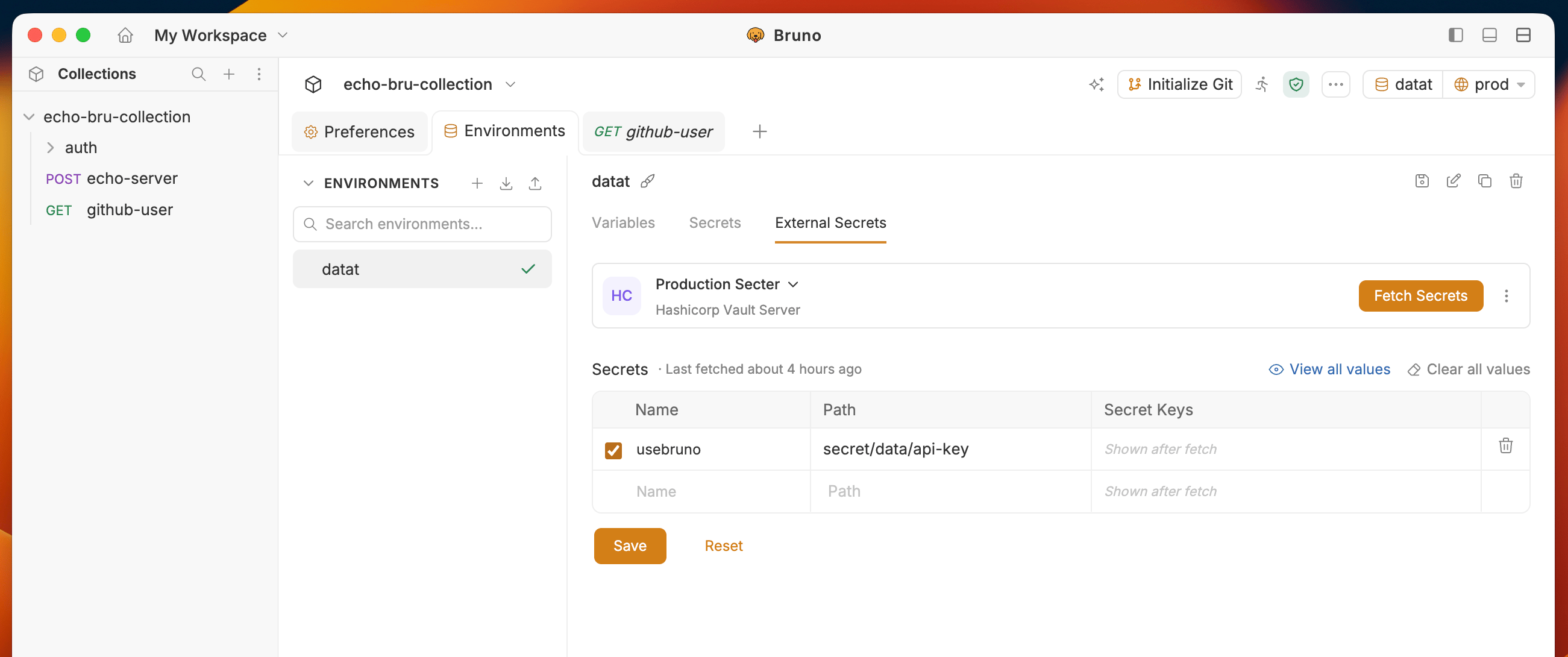 4. Click on the `Fetch Secrets` button on the top right corner.
5. The fetched secrets will be displayed in the **Secret Keys** column along with their values.
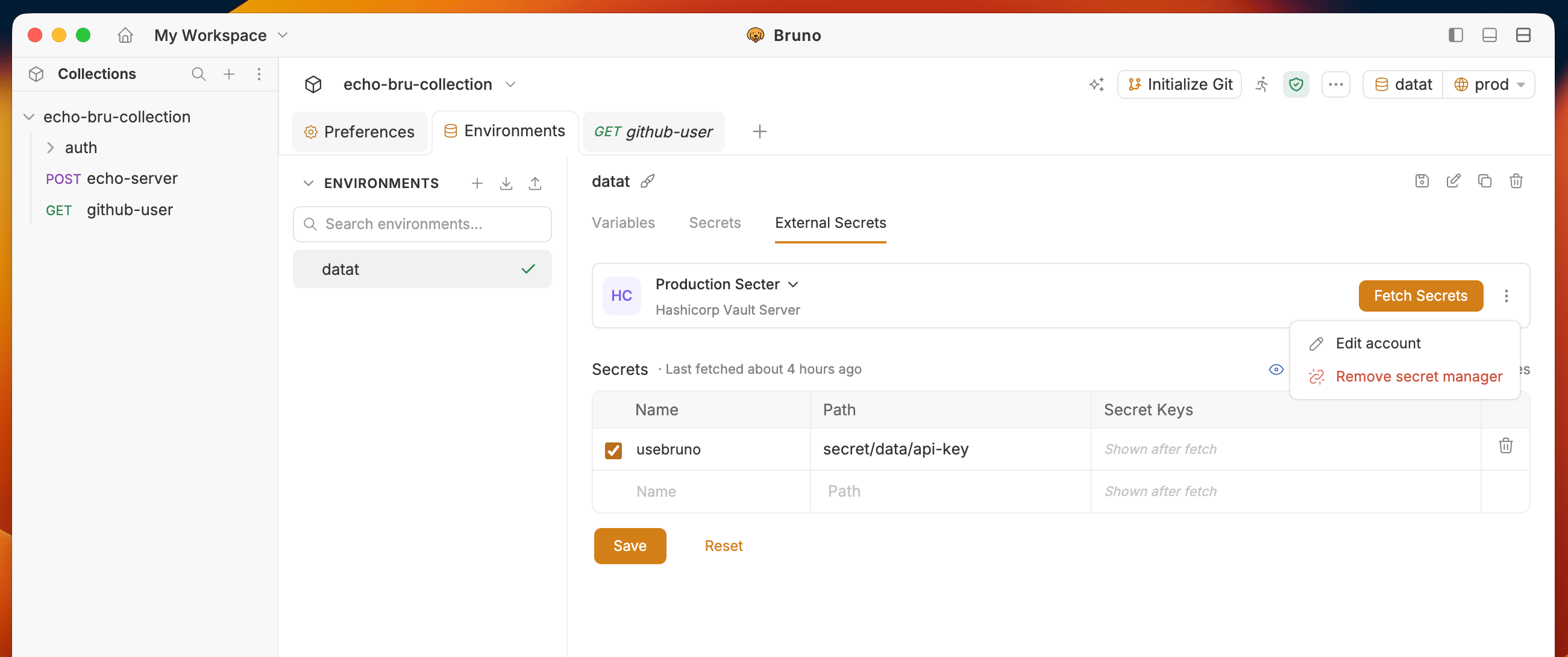
Use three dots menu to:
* **Edit account** to edit the account details
* **Remove secret manager** to remove the secret manager configuration
4. Click on the `Fetch Secrets` button on the top right corner.
5. The fetched secrets will be displayed in the **Secret Keys** column along with their values.
Use three dots menu to:
* **Edit account** to edit the account details
* **Remove secret manager** to remove the secret manager configuration